

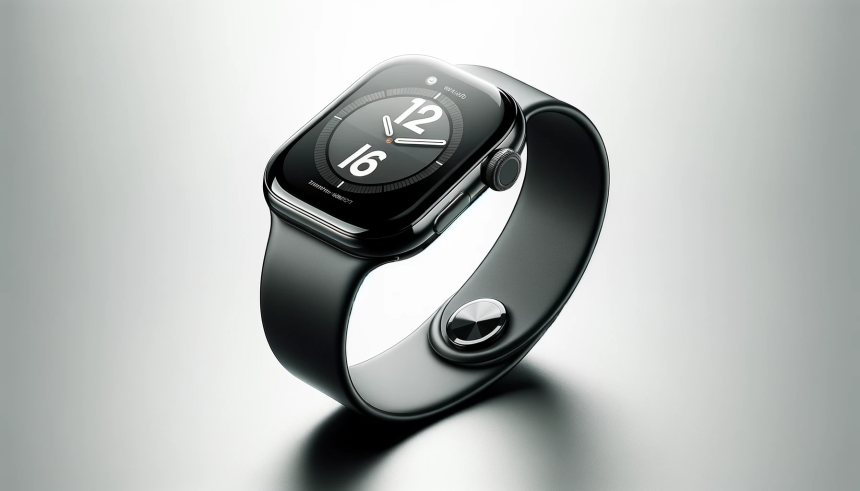

Apple Watch devices have become integral for those seeking a seamless mix of technology and daily activity tracking. As new users set up their latest Apple Watch, several crucial settings can strongly affect the functionality and personal comfort with the device. Small adjustments can lead to notable improvements in usability, battery consumption, and how responsive the watch feels. Considering the broad range of customization, understanding which settings to tweak makes starting with a new Apple Watch a more satisfying experience.
Recent articles and user guides often highlighted general features such as health tracking, notifications, and custom watch faces, but those discussions occasionally overlooked more nuanced options like Live Activities, haptic feedback intensity, or list ordering in the app layout. Earlier reports also focused on battery saving techniques or how to pair the watch, whereas the current guidance underscores the direct connection between user personalization and the everyday utility of Apple Watch. Compared to older advice, the present focus is on settings that make the device more tailored to individuals from the very start.
How Do Live Activities Affect User Experience on Apple Watch?
Turning on or modifying Live Activities on the Apple Watch allows users to receive real-time updates directly on their wrist. This can be useful for monitoring ongoing events like sports scores, workouts, or deliveries without checking a phone. Users now have the flexibility to control which apps display these updates, which can make the information more relevant.
“Live Activities provide glanceable status updates, letting you keep up without reaching for your iPhone,”
an Apple spokesperson commented.
Which Notification Settings Offer Better Control?
Notifications can be customized to avoid overwhelming users with constant alerts. Adjusting which apps are allowed to send notifications, or setting “Do Not Disturb” periods, can help maintain focus. Choosing to mirror iPhone notifications or setting unique Apple Watch notifications enhances this control. Apple highlights the importance of thoughtful notification management:
“Users can decide what gets their attention and when, reducing distractions throughout the day,”
Apple stated.
What Other Settings Should Be Adjusted Immediately?
Among the other settings suggested for immediate review are the haptic feedback level, activity goals, Siri activation, display wake preferences, and list vs. grid view for app organization. Adjusting these right away enables users to align the device’s behavior with their habits and preferences, minimizing unnecessary interruptions or battery use. Updating these preferences can help users feel more comfortable and in control of their device as they get used to its features.
Optimizing Apple Watch settings from the outset delivers a more tailored, less intrusive experience. Adjustments to Live Activities and notifications ensure that users receive only the most needed and useful information throughout the day, rather than an overload of alerts. Choices about haptics, display, and app layout can make navigation smoother for both beginners and experienced users. Taking a few minutes to personalize these features is worthwhile, particularly for those who use the device for both productivity and health purposes. For anyone starting with an Apple Watch, taking early control of these seven settings ensures the device works best for their individual needs and routines.